SMS Operational Alerts: Opt-In & Consent
Outermind can send you urgent operational alerts by text message, such as approval requests, escalations, and time-sensitive agent notifications. SMS is an optional urgent-notification channel: email remains the default for every message, and you only receive a text after you have personally verified your mobile number and consented to receive messages.
Text alerts and SMS opt-in come with the Workforce and Platform plans. Below those plans, the profile shows "Text messages come with Workforce." instead of the opt-in steps, and an existing opt-in can still be turned off.
This page documents the complete opt-in experience exactly as a user sees it: where to find the opt-in, how the verification works, the consent language you agree to, the types and frequency of messages you may receive, and how to opt out at any time.
Overview
Outermind sends operational SMS alerts from a dedicated toll-free number, +1 (866) 673-2040, using Azure Communication Services (ACS). Because it is a toll-free number, SMS is available to mobile numbers in the United States, Puerto Rico, and Canada (+1) only.
Two characteristics define this channel:
- Opt-in only, with double opt-in verification. No message is ever sent to a number that has not completed the one-time-code verification described below. Providing your number alone is not enough; you must also enter the code that is texted to that number.
- Operational, not promotional. These messages are transactional alerts about your own agent's work. SMS is never used for marketing. Consent is not a condition of using Outermind; every platform feature works without it.
Open the Mobile SMS card        Enter number, get a code        Review consent, verify
(Profile > Notifications)       (6-digit one-time code)         (opted in)
        |                               |                               |
        v                               v                               v
+-----------------------+     +-----------------------+     +-----------------------+
| Mobile number field   |     | Code sent by SMS to   |     | Consent disclosure    |
| + consent disclaimer  | --> | the entered number;   | --> | shown verbatim; enter |
| shown at collection   |     | 6 digits, 10-min TTL  |     | code, "Verify and     |
|                       |     |                       |     | opt in"               |
+-----------------------+     +-----------------------+     +-----------------------+
This operational-alert channel is provided and managed by Outermind over its own toll-free number. No per-organization provider setup is required to receive these alerts; each user opts in individually from their profile. This is separate from the agent-level SMS tooling an administrator can configure for two-way agent messaging. See Azure Communication Services SMS Integration for that capability.
How to Opt In
The opt-in lives in your own profile, not in an administrator console.
| Step | Location |
|---|---|
| Open your profile | My Profile (top-right account menu) |
| Open the channel | Notifications tab |
| Find the card | Mobile SMS card, below Communication Preferences |
Step 1: Open the Mobile SMS card
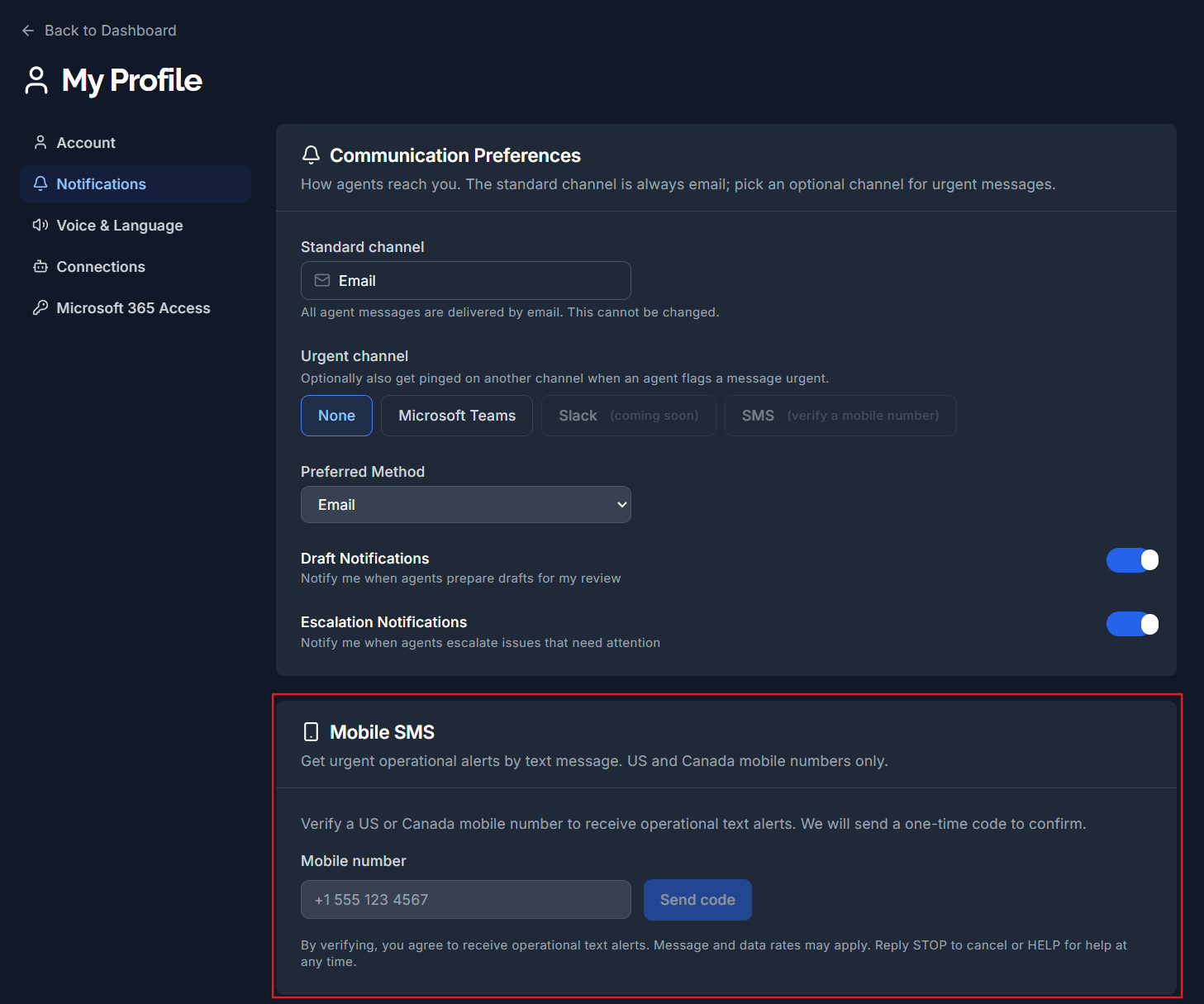
On My Profile > Notifications, scroll to the Mobile SMS card. The card explains the channel ("Get urgent operational alerts by text message. US and Canada mobile numbers only.") and presents a single mobile-number field.
The consent disclaimer is shown at the point of collection, directly beneath the field, before you submit anything:
By verifying, you agree to receive operational text alerts. Message and data rates may apply. Reply STOP to cancel or HELP for help at any time.
Step 2: Enter your mobile number and request a code
Enter a US, Puerto Rico, or Canada (+1) mobile number in any common format (for example, +1 555 123 4567 or (555) 123-4567). The number is normalized to E.164 format automatically. Click Send code, and Outermind texts a 6-digit one-time code to that number.
Step 3: Review the consent disclosure and verify
The card now shows the full consent disclosure verbatim, along with the verification-code field. Review the disclosure, enter the 6-digit code, and click Verify and opt in. The code expires after 10 minutes, and you can request a new one after a 60-second cooldown.
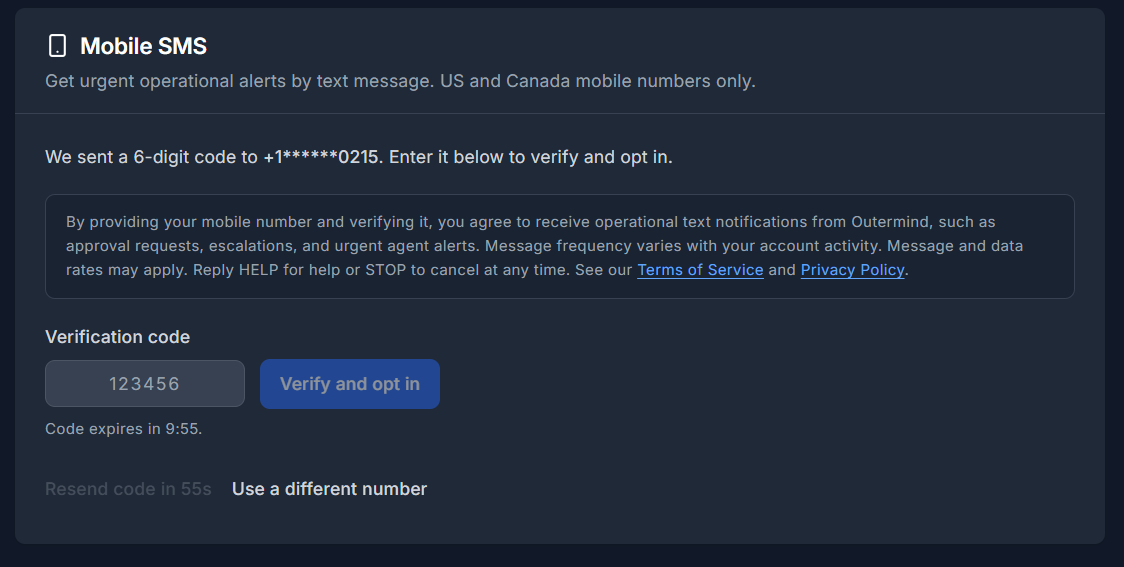
This two-step, code-based flow is a 2FA/OTP double opt-in: consent is recorded only after the code is confirmed, proving the person consenting controls the handset.
Step 4: You are opted in
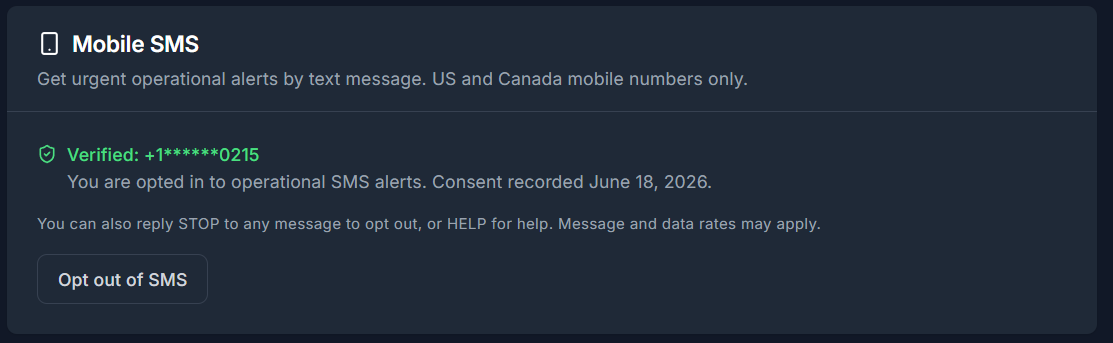
After verification, the card confirms your masked number, the date your consent was recorded, and your standing opt-out options. A Opt out of SMS button is available at any time.
The Consent Disclosure
The consent disclosure displayed during verification is owned by the server and rendered verbatim, so the text you agree to is recorded exactly as shown. The current version (v1) reads:
By providing your mobile number and verifying it, you agree to receive operational text notifications from Outermind, such as approval requests, escalations, and urgent agent alerts. Message frequency varies with your account activity. Message and data rates may apply. Reply HELP for help or STOP to cancel at any time. See our Terms of Service and Privacy Policy.
Outermind is the first party sending these messages; consent is collected directly by Outermind and is not shared with any third party for their own messaging.
Message Types and Samples
All messages are operational. Message frequency varies with your account activity: you receive a text only when an agent needs your attention, such as an approval request or an escalation. The following categories and samples cover everything sent over the toll-free number.
| Message Type | Purpose | Frequency |
|---|---|---|
| Verification code | Confirms you control the number during opt-in | Once per opt-in attempt |
| Welcome / confirmation | First message after a successful opt-in | Once, at opt-in |
| Approval requests | Asks you to approve an agent action | As needed, when an agent requires approval |
| Escalations | Flags an issue that needs your attention | As events occur |
| Urgent agent alerts | Time-sensitive status changes | As events occur |
Representative message samples (each within 160 GSM-7 characters):
- Verification code:
Outermind: your verification code is 123456. It expires in 10 minutes. Msg & data rates may apply. - Welcome:
Outermind: you are opted in to operational alerts. Frequency varies. Msg & data rates may apply. Reply HELP for help, STOP to cancel. - Operational alert (example):
Outermind: your agent needs approval to send 2 emails. Reply HELP for help, STOP to cancel. Msg & data rates may apply.
SMS messages are limited to 160 characters per segment. Outermind keeps operational alerts concise so they fit within a single segment.
Opt-Out
You can opt out at any time, by phone or in the app. Opting out takes effect immediately.
Reply STOP
Reply STOP to any message from the toll-free number to stop all SMS immediately. The handset is suppressed, so no further messages are sent to it until you re-subscribe.
Reply HELP
Reply HELP to any message to receive support information and a reminder of how to opt out.
In the app
In the Mobile SMS card on My Profile > Notifications, click Opt out of SMS. The card returns to the opt-in state, and you can opt back in later if you choose.
Recognized keywords
These standard keywords are recognized automatically when texted to the toll-free number:
| Keyword | Action |
|---|---|
| STOP | Immediately stops all SMS to your number |
| HELP | Returns support and opt-out information |
| START | Re-subscribes a previously opted-out number |
Re-Subscribing
If you previously opted out, you can opt back in:
- By phone: reply START to the toll-free number to lift the suppression on that handset.
- In the app: open the Mobile SMS card, enter your number, request a new code, and complete the same verification and consent steps as the original opt-in.
Re-subscribing requires the same verified, double-opt-in consent as the initial opt-in.
Data Privacy
What is stored
| Data | Storage | Retention |
|---|---|---|
| Mobile number | Tenant database, written only after successful verification | Until you opt out or your account is deleted |
| Consent record | Append-only consent log with the verbatim disclosure text, version, and timestamp | Retained for the compliance audit trail |
| Opt-in / opt-out events | Consent log (verify sent, verify confirmed, opt-in, opt-out) | Retained for the compliance audit trail |
| Suppression list | Phone-keyed suppression table | Until a START / re-subscribe releases it |
Security controls
- Verification before storage. A number is written to your profile only after the one-time code is confirmed. An abandoned verification never opts you in.
- Tenant isolation. SMS preferences and consent records are scoped to your tenant via TenantId. A verified number is also globally unique to a single opted-in user.
- No third-party sharing. Numbers and message content are not shared with third parties beyond Azure Communication Services, which delivers the messages on Outermind's behalf.
- Auditable consent. Every opt-in, opt-out, and verification event is recorded in an append-only log.
Compliance
Outermind's SMS program is designed to comply with:
- TCPA (Telephone Consumer Protection Act): explicit, verified opt-in consent before any message is sent.
- CTIA Messaging Principles: STOP/HELP/START keyword support, consent documentation, and message-frequency disclosure.
- CAN-SPAM: clear sender identification ("Outermind") and an opt-out mechanism in messages.
- GDPR (where applicable): consent records are maintained, and the right to erasure is supported via opt-out and account deletion.
Frequently Asked Questions
Do I have to enable SMS?
No. SMS is entirely optional and opt-in. Email remains the default channel for all notifications, and every platform feature works without SMS enabled. Consent is never a condition of using Outermind.
Why do I have to enter a code?
The code proves that you control the mobile number you entered. This double opt-in protects you from being signed up by someone else and is required for our toll-free messaging program.
Which numbers are supported?
Mobile numbers in the United States, Puerto Rico, and Canada (+1) only. This is a constraint of the toll-free number used to send the messages.
Does SMS cost anything?
Outermind does not charge you for SMS. Standard message and data rates from your mobile carrier may apply. Carrier costs for the messaging program are billed to Outermind.
How often will I be messaged?
Only when an agent needs your attention. Frequency varies with your account activity; there is no recurring or scheduled marketing traffic on this channel.
What if I change my number?
Open the Mobile SMS card, choose to use a different number, and complete verification for the new number. The previous number stops receiving alerts once the new one is verified.
Related Topics
- Azure Communication Services SMS Integration: ACS provider setup for agent-level SMS tooling.